
Using VNC, on Windows
Why not PCAnywhere, TeamViewer or other usual tools ? – The answer is here.
Why do we provide such a support page for Windows users and not for Linux users, despite Linux is the most used system in the world since years ?
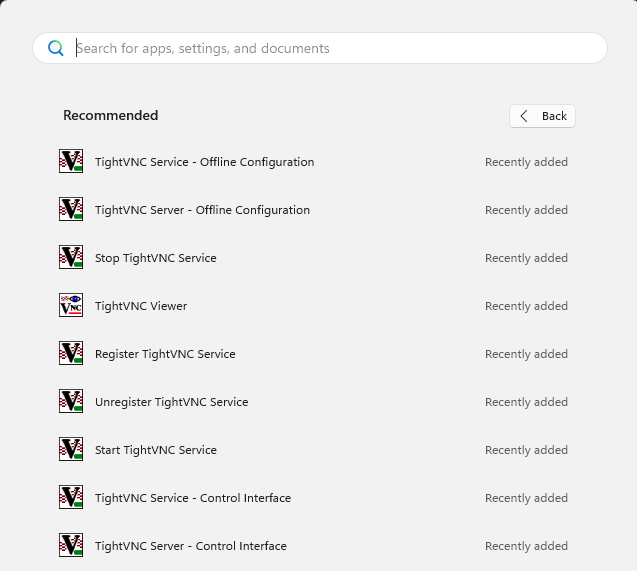
First, you need to have a VNC server installed on your Windows. If not, please follow our installation wizard here.
Find a “Start TightVNC service” button.
It may be a good idea to add it to your start menu or to your desktop.
The VNC service will appear in your task bar:
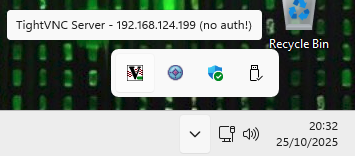
Right-click on the VNC icon:
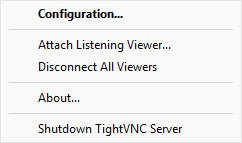
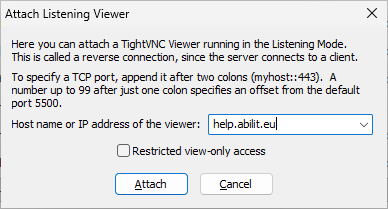
To send us your screen (after placing a call), click on “Attach Listening Viewer”. The “listening viewer” is at Abil’I.T. and by doing so, you sent your screen, keyboard and mouse control to Abil’I.T. help-desk operator.
You will be allowed to interact with our help-desk (you will share the keyboard and mouse), so it will be as if we are sitting with you aside of you in your room, accessing your keyboard and screen with you.
How to make sure it’s safe ?
- You decide when the share starts, when it stops.
- You always keep the physical possibility to disconnect
- You attend the shared session, so you monitor any Abil’I.T. help-desk action
- You control to who (address) you sent your screen
- You interact with us by phone, Signal, … at the same time, so you can control you share with the intended person.
Don’t ever trust someone that call you to ask you to perform such a procedure. You must be the person that decided to trigger it, and you must be the issuer of the phone/Signal call. This guarantees that you are connected to the right service. If you are called by us, you may consider a call-back on a phone number you already knew, before doing so.
Make sure also to DISCONNECT all remaining connections at the end of the intervention (see below).
To sent your screen, click on “Attach Listening Viewer”, and fill the destination field (“IP Address of the Viewer”):
And click “Attach”.
If you just want to show your screen but don’t want us to have access to it (neither your mouse and keyboard), tick the “view-only access” before sending the screen.
To disconnect:
In the RIght-Click menu of the VNC icon (in the task-bar), select “Disconnect All Viewers”.
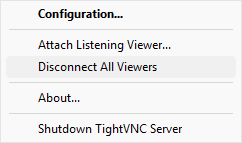
If you don’t need the VNC server anymore, you may also consider the “Shutdown TightVNC server”. In this case, if you need to sent again your screen, you will have to “Start the VNC server” again (see the top of this page).