

Configure your e-mail (Android)
Using Thunderbird
– on smartphone –
This wizard is illustrated with Thunderbird, the versatile fully standard-compliant e-mail client, available on almost all platforms.
Download Thunderbird
Download and install Thunderbird, using the F-Droid alternative repository software. Why F-Droid ? Because it only proposes FreeSoftware.
FreeSoftware is not “Freeware” (gratis). Read our article about it here.
Your parameters
Depending on your exact environment, the steps and layout may vary, but what you need to know are the following parameters:
E-mail server type: IMAP (not POP, neither POP3, …)
The “incoming” server, the IMAP server, is: imap.abilit.eu
Security: SSL/TLS with “normal password”, port 993
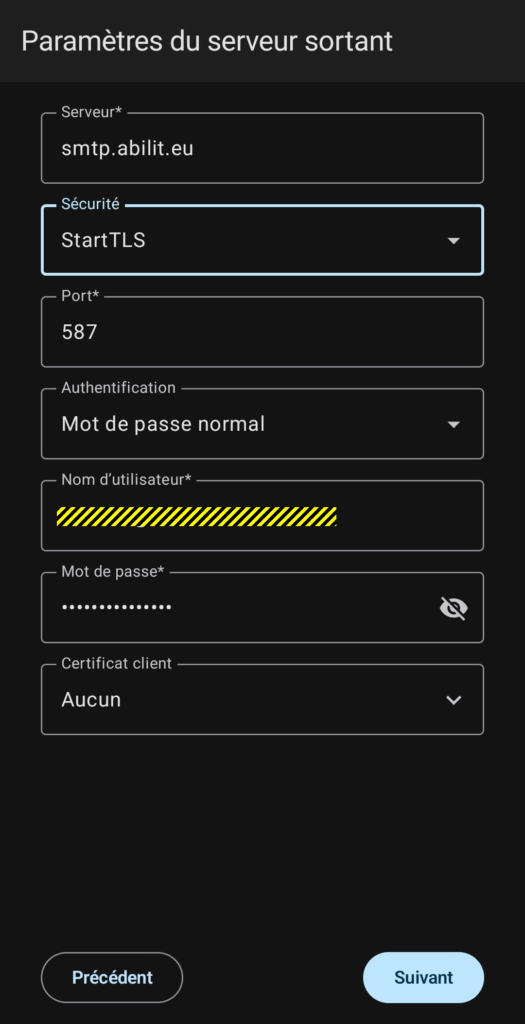
The “outgoing” server, the SMTP server, is smtp.abilit.eu
Security: “StartTLS” with “normal password”, port 587
Download
In F-Droid, click on the “search” icon:
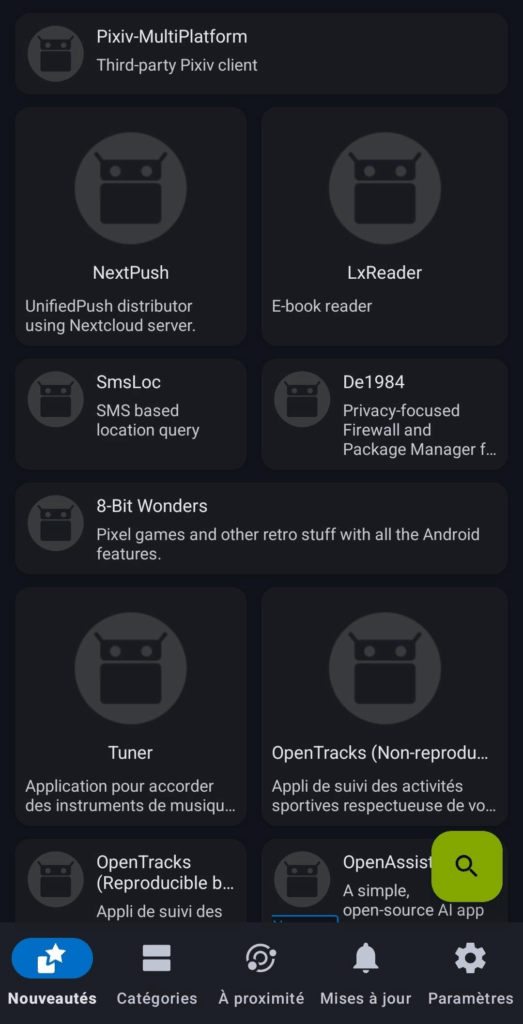
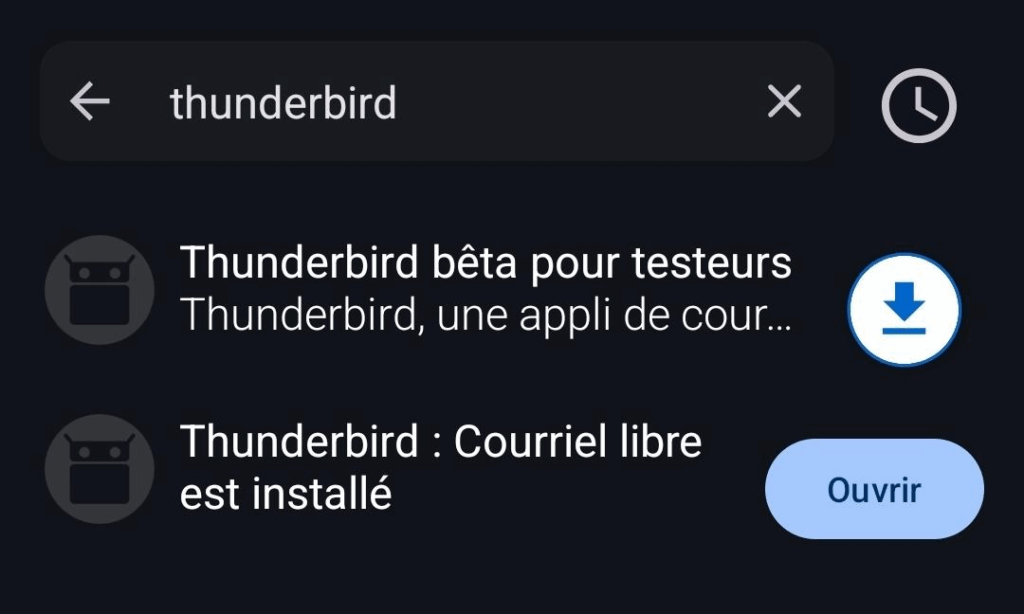
Enter the name of the application you are searching for: « Thunderbird »
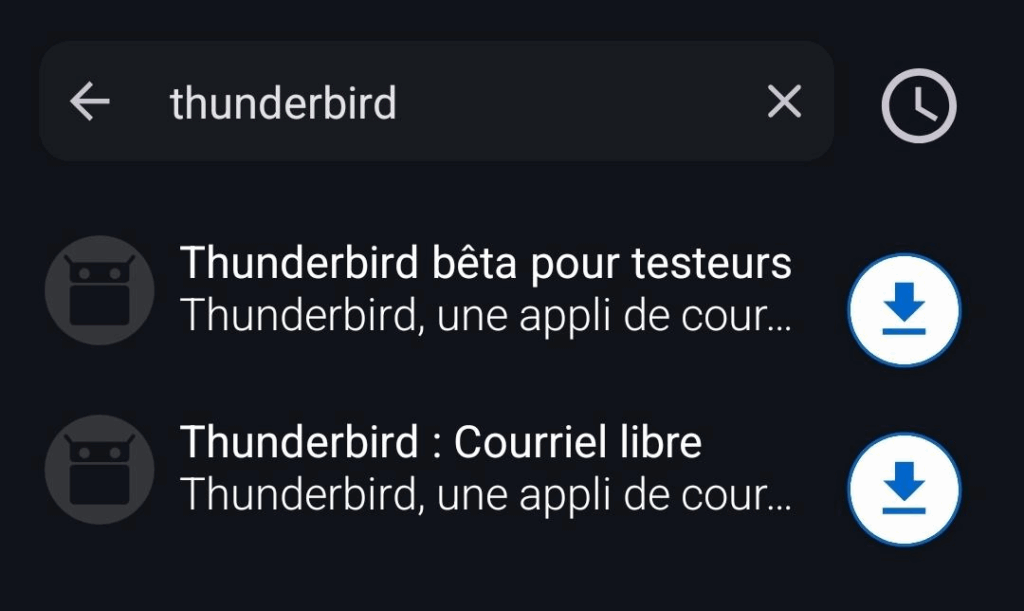
Click on the “download” icon, on the right.
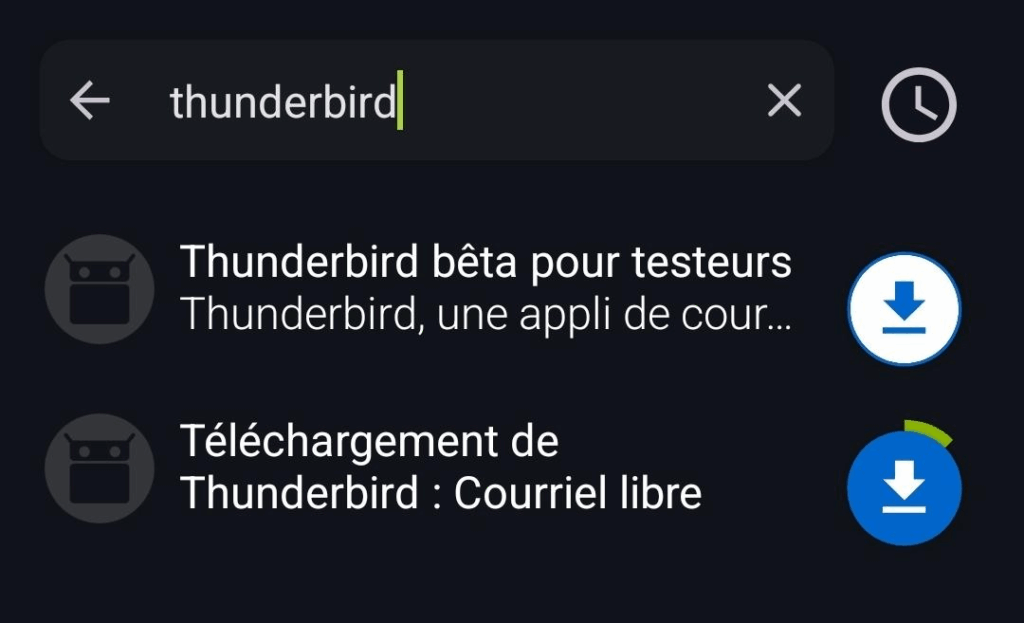
The application will start to download:
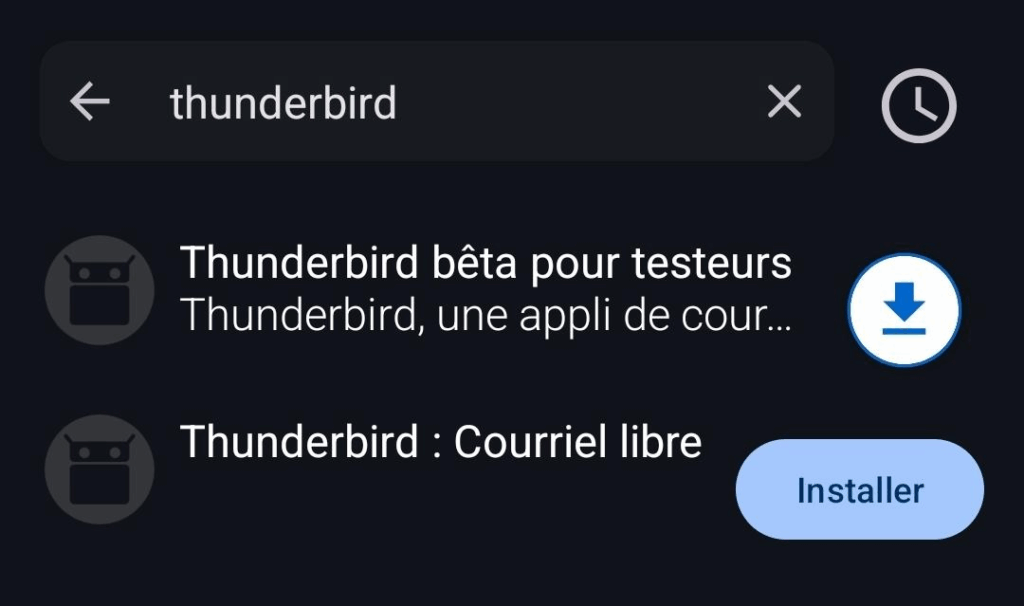
Once downloaded, F-Droid will propose you to install Thunderbird:
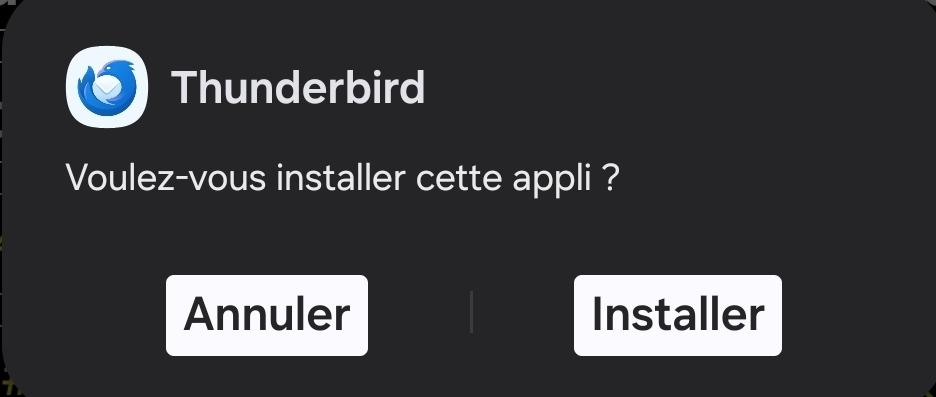
Depending on your Android version, it may require you to confirm the installation:
Once the installation performed, you will be invited to launch it:
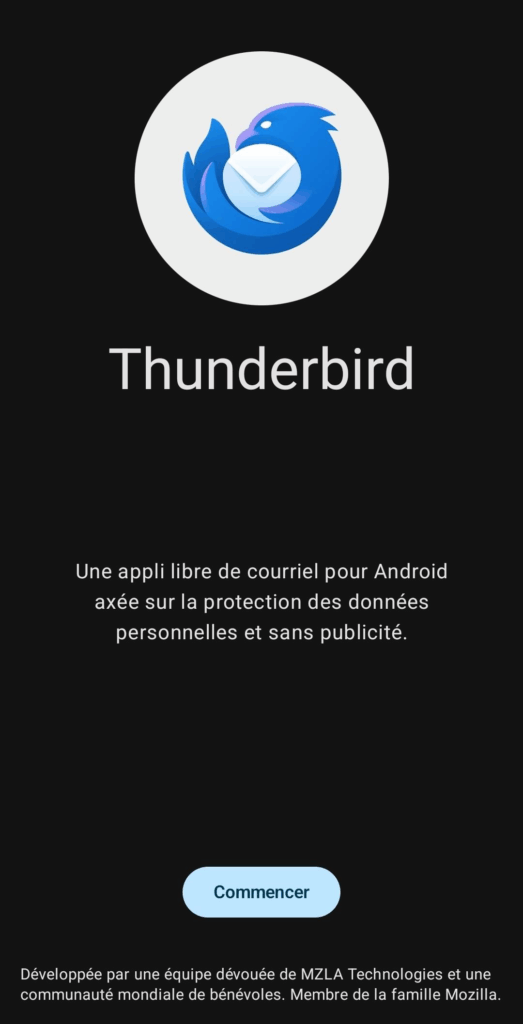
Thunderbird will launch for the first time, and propose you to configure it:
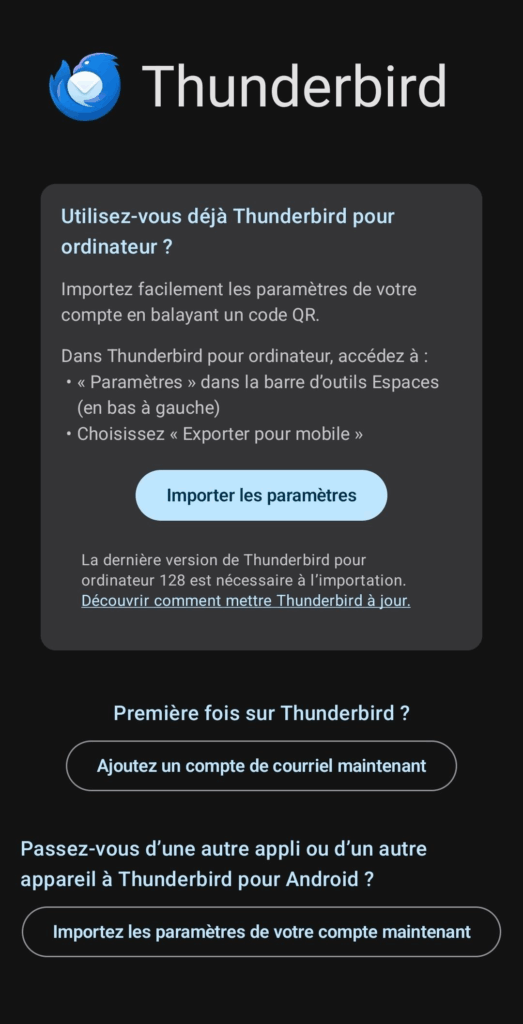
You can either try to use the “auto-configure” feature, through QR-code, or select the “Add an e-mail account now”, the manual way:
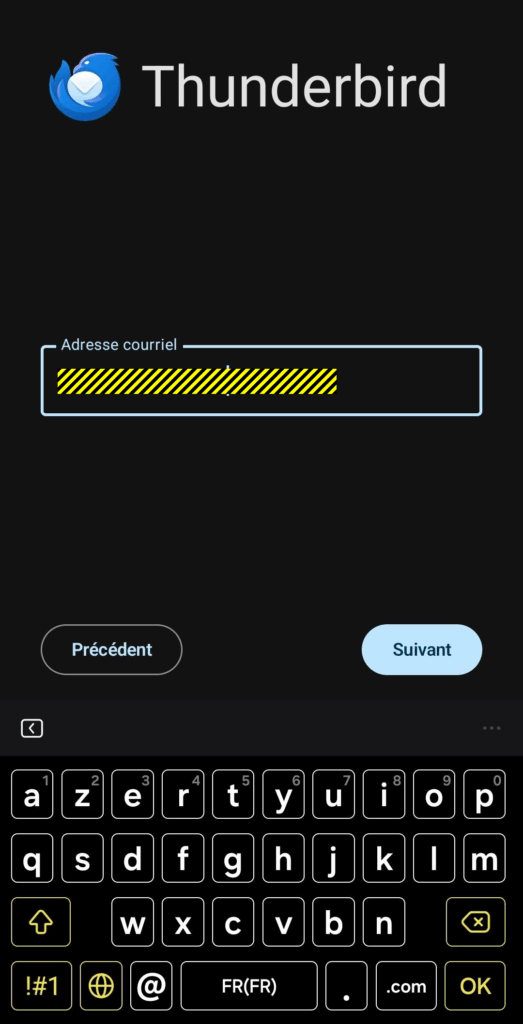
The next screen will invite you to enter your Abil’I.T. e-mail address:
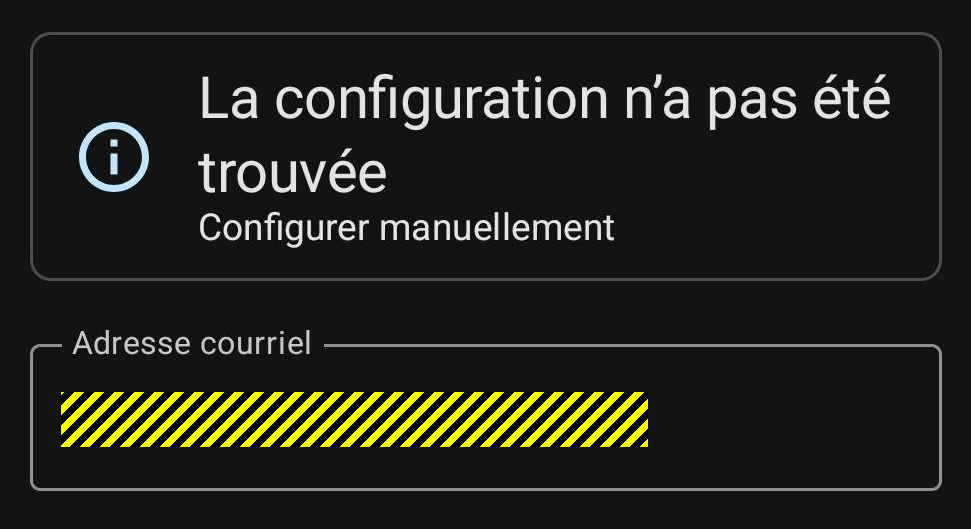
The current version of the application does not “detect” the configuration:
On the next screen, you will be able to fill the right parameters for “Incoming” e-mails:
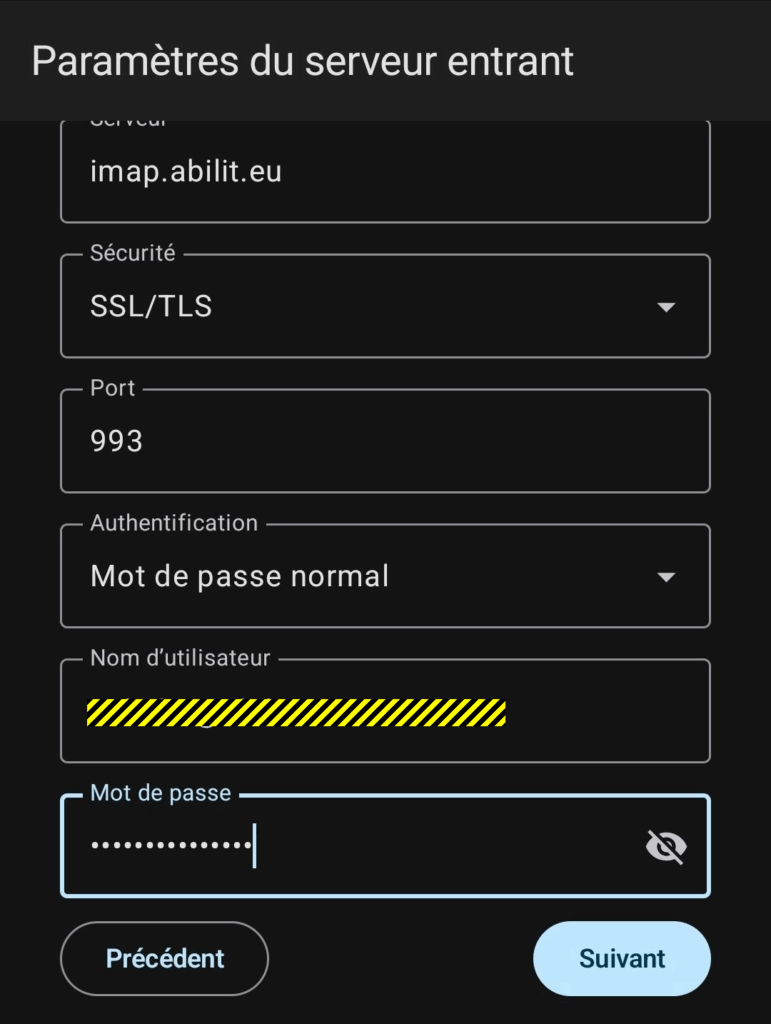
The “User Name” is just the login, without domain.
Then click on “Next”.
The next screens contains the “Outgoing” parameters.
The User Name is here your login with the domain name, such as
“<login>@abilit.eu“.
On the next screen, you can leave the settings by default:
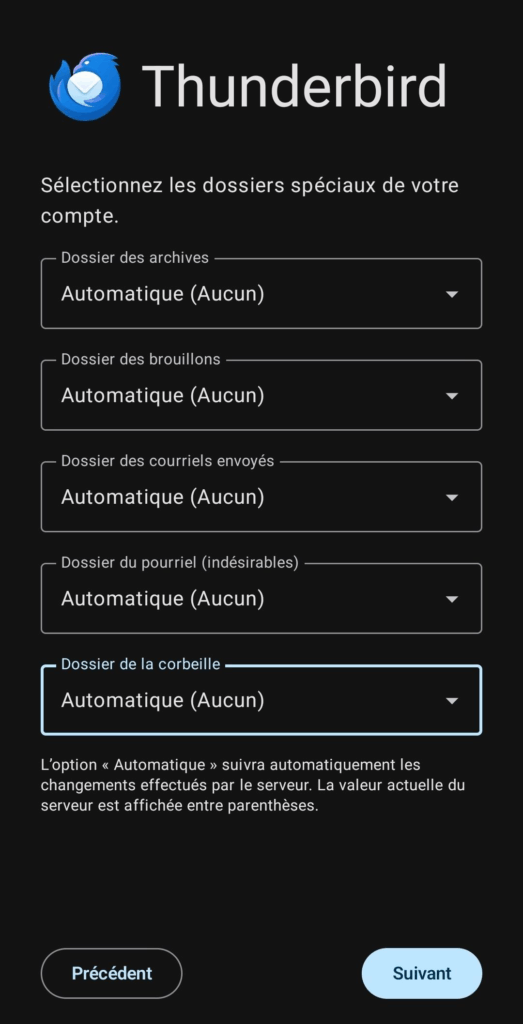
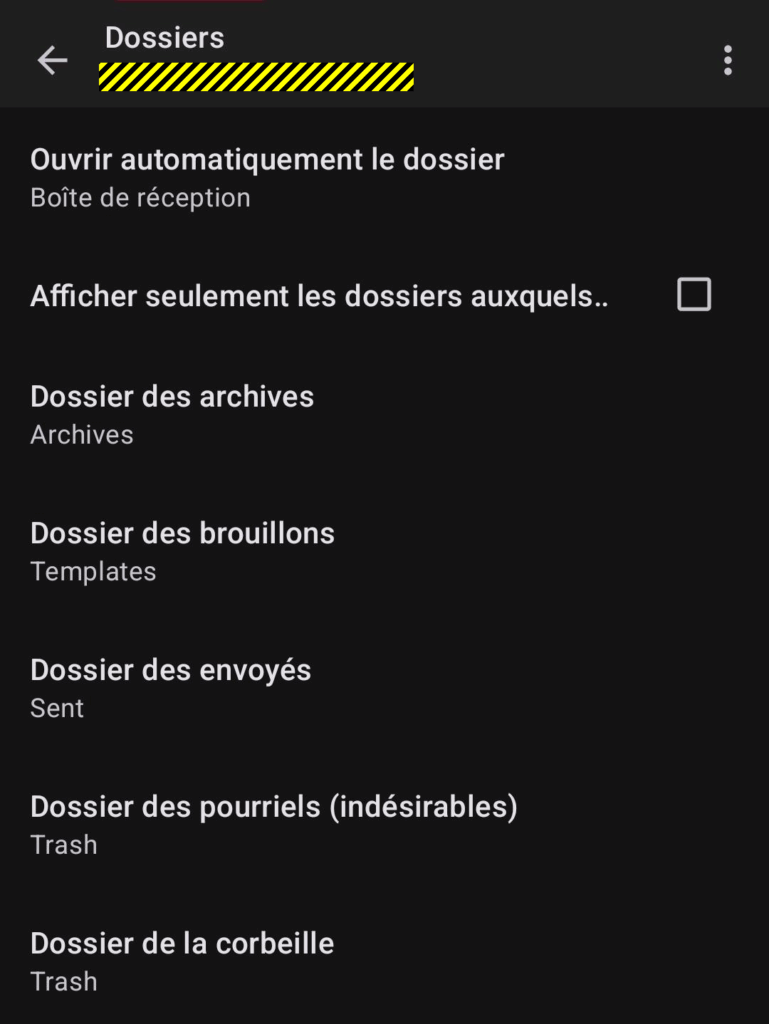
If you wish to have your e-mails (templates, drafts, junks, sent, …) stored on the server, you should have created subfolder in your mailbox (as described here) and select them now:
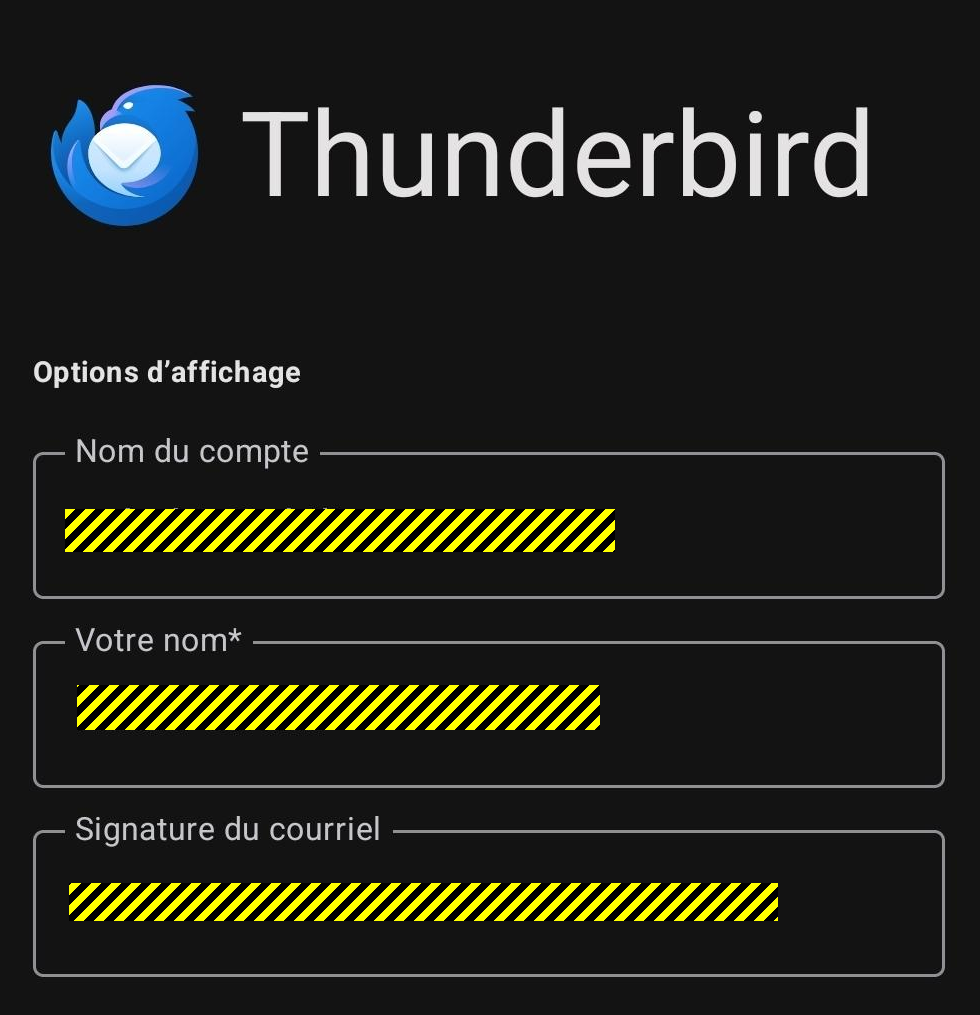
The next screen will allow you to enter the name that will be displayed instead of your e-mail, your e-mail signature, …
As Account Name, you can set “AbilIT”, as you may configure other e-mail accounts in this very same e-mail client, such as your private one, …
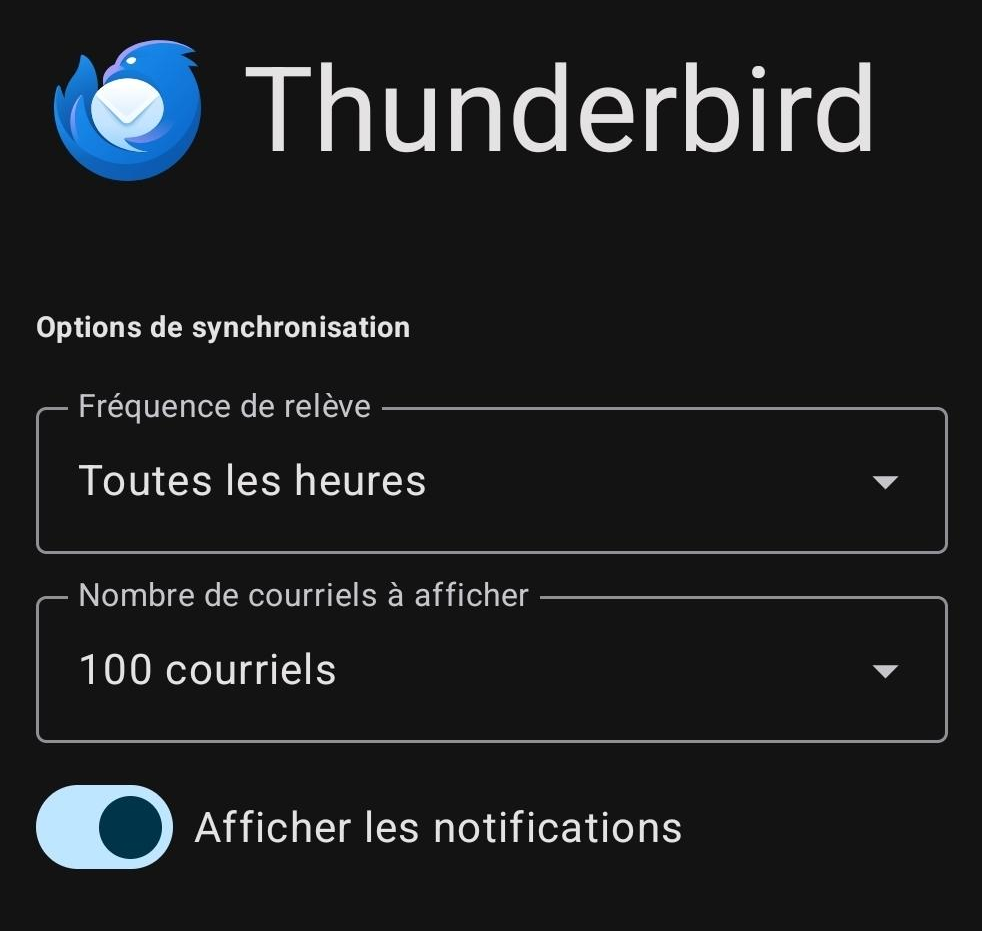
You can configure the other parameters your own way:
Your Thunderbird is now configured.
By selecting the same folder on your Smartphone and on your Desktop e-mail client (Sent, Draft, Trash, Junk, …), you will be able to find the e-mail you sent from one platform in the other one.
Enjoy.
In case of problem, call our help-desk.
We may even be able to remotely assist you.