
Download
The recommanded VNC protocol implementation, on Windows, is “TightVNC“. It can be found and downloaded from here:
https://www.tightvnc.com/download.php
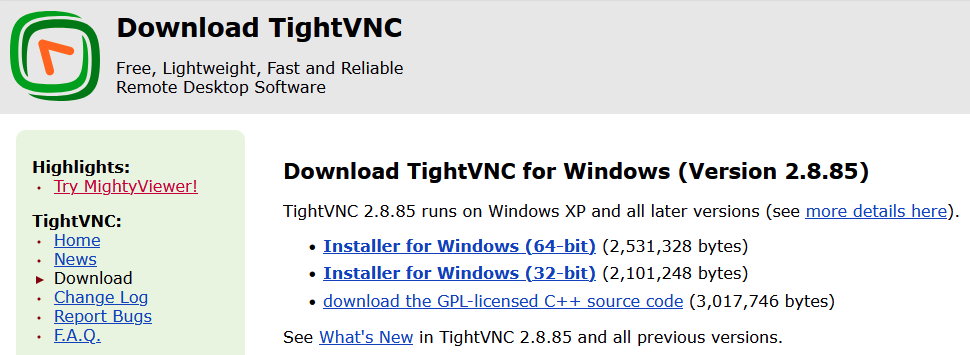
(The URL may become invalid. If so, please contact us or search for it on your preferred search tool):
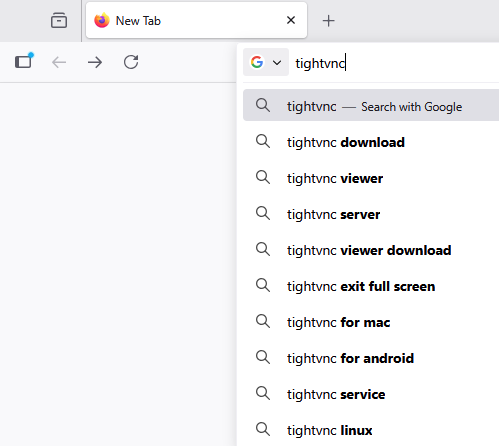
Result may vary:
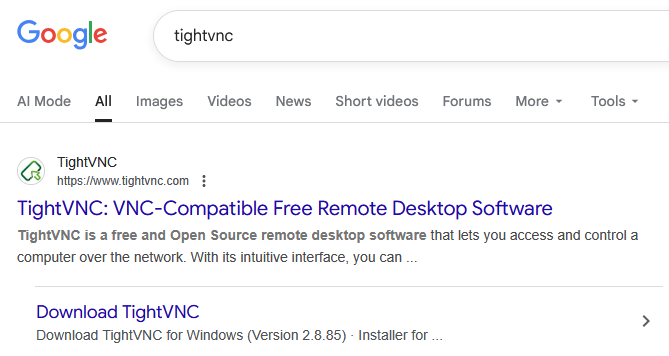
At the time of the redaction of this page, the last published version is:
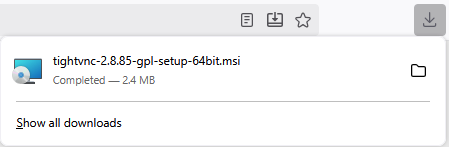
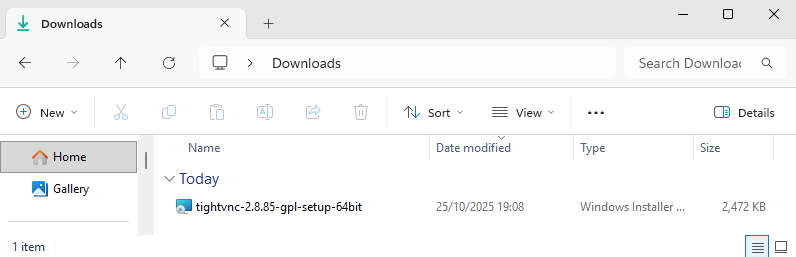
After downloading the “.msi” file, it shoud be in your “Download” folder:
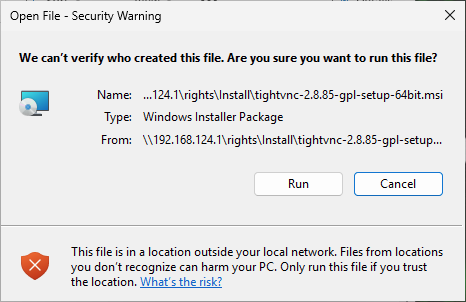
Double click on the “.msi” installation file, confirm that you want it to “make modifications to your computer”:
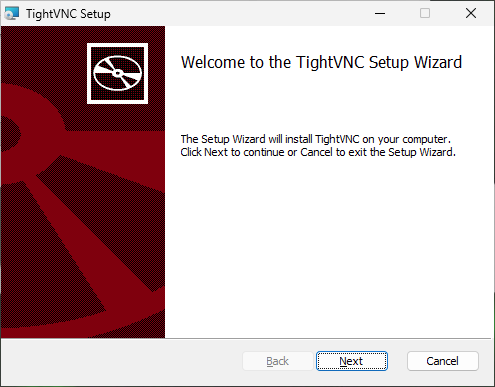
The Setup Wizard will then launch:
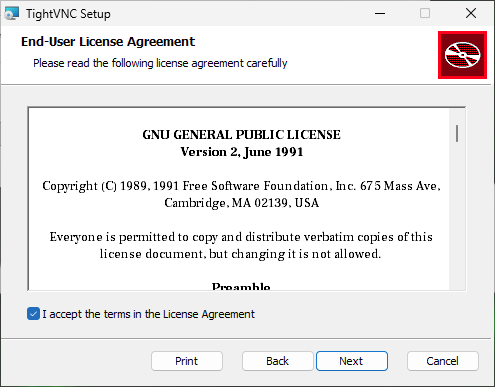
Click on “Next”, accept the License Terms. The license is GPL 3, which is the license promoted by the Free Software Foundation, made to protect your software usage freedom and independency from Vendor Lock-in.
Don’t forget to tick the “accept” box.
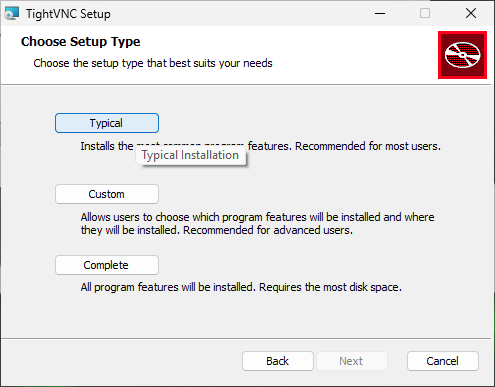
In the next screen, select “typical installation”:
In the next screen, disable the option “Register TightVNC Server as system service“, as you don’t want your computer to be accessible remotely any unattended manner.
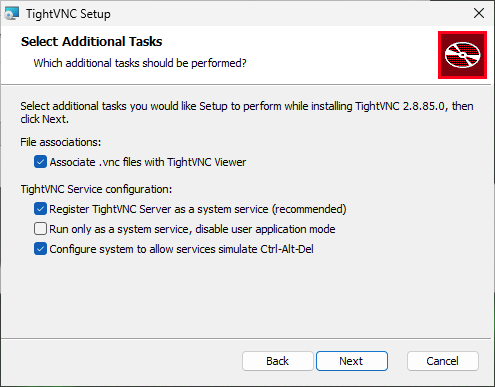
Before…
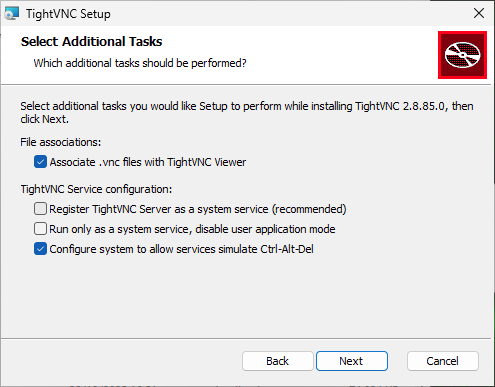
After.
On the next screen, click “Install”
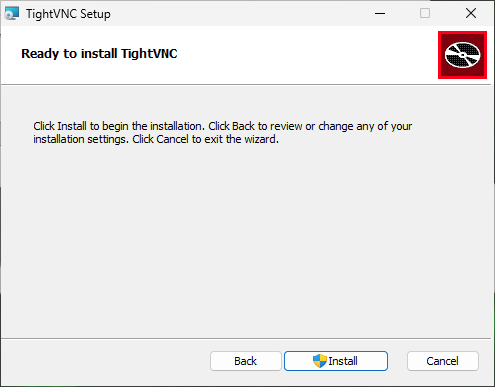
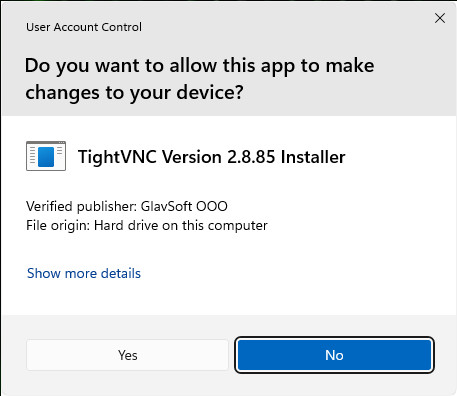
As the Windows OS is paranoiac and insecure by design, and as Microsoft wants you to avoid any other software source than their own store, you are required to confirm once again that, indeed, you want to enjoy this Free Software on your computer…
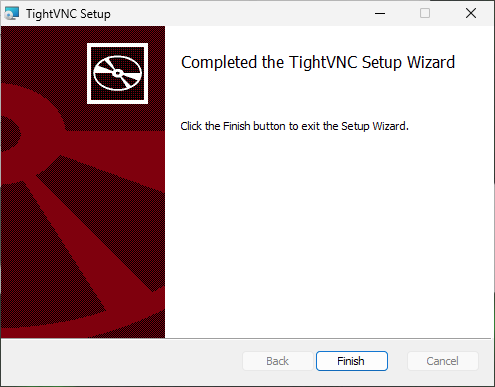
After the installation is done, the Wizard ends:
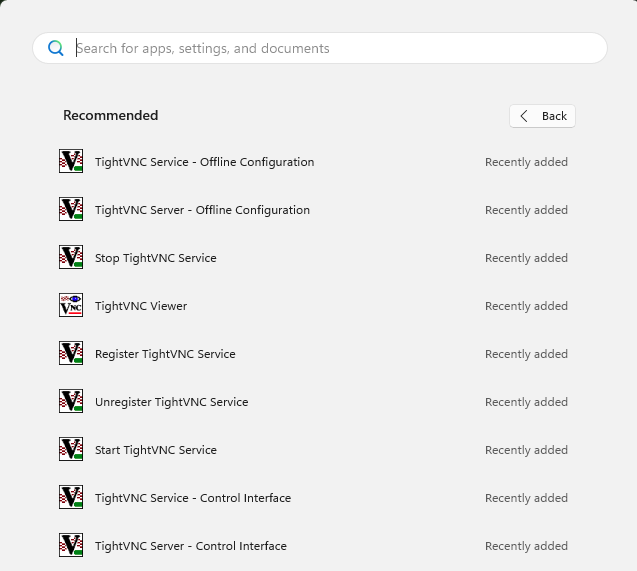
In the newly installed application, you will find “Start VNC service”:
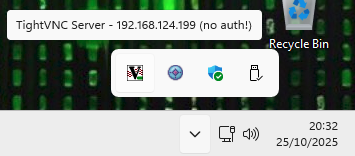
Once the VNC service is launched, you will find it in the task bar:
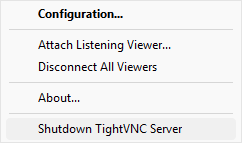
A right-click on the VNC icon will lead you to a menu:
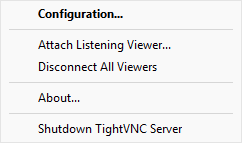
Click on “Configuration”. It will lead you to:
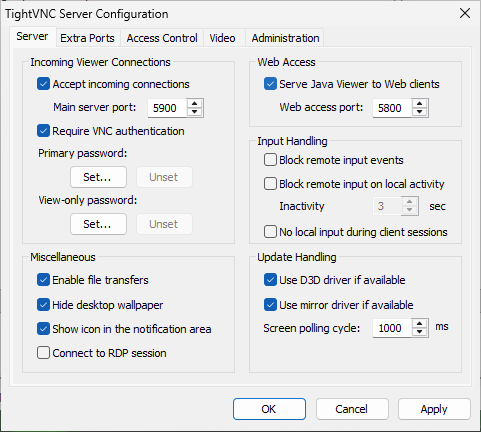
Default
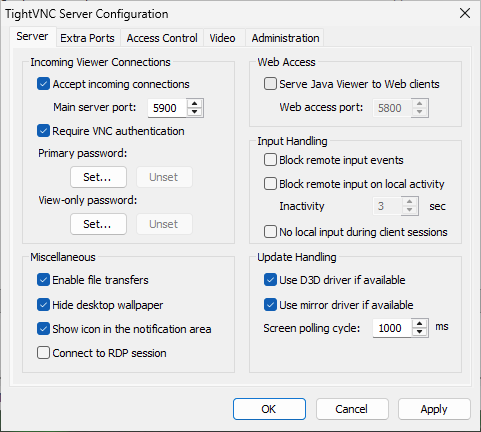
Web access disabled
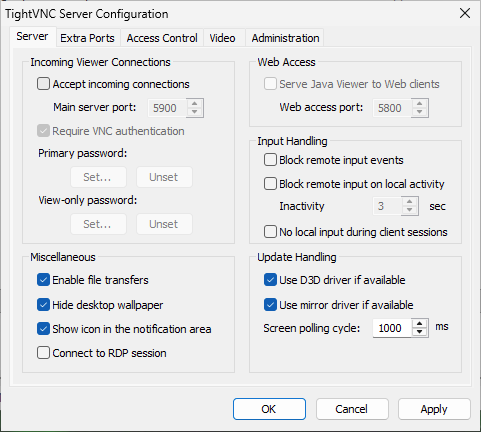
Disable “Accept incoming connection”
Disable the “Web access”, then disable the “Accept incoming connection”.
This will make impossible any unattended remote access to your computer, despite it is the main purpose of this application (VNC server).
TightVNC is now installed. If you don’t need the VNC service, you may stop it, by clicking on “Shutdown TightVNC Server”.
At this point, you have installed a VNC server software (“TightVNC”) on your computer, disable the remote access features, and avoid the registration of the server as a Windows Service.
It means the VNC server will not start automatically at system startup, and will not allow any remote connection to your computer, even if it is directly connected to the Internet.
Those steps must be done only once on a Windows system.
Once done, you may enjoy the “send my screen to the Abil’I.T. help-desk”, following the appropriate procedure.